Networks can fail, and when they do, Clover Sport is here to help keep things running smoothly. A Clover Sport device can still capture certain orders offline and later syncs the orders once network connection is restored.
- What is Offline Mode?
- How do I know when I'm working in Offline Mode?
- How do I enable Offline Mode?
- Offline Credit Card Amount Limit (USD)
- What are the risks of using Offline Mode?
- What should I do after using Offline Mode?
- Can I log into the device if it is offline?
What is Offline Mode?
In Offline Mode, orders are captured immediately, while payments are queued in the background until the network is restored. This allows you to keep lines moving and maintain customer satisfaction.
Please be aware that payments cannot be authorized until the network is back online. This means that if a credit card transaction fails, you won’t know until after the order has finished syncing. Offline orders that fail to process payment will appear on your Orders page to be written off. For more information, please visit the Action Needed Orders section of the Orders page.
- Note: Clover Sport is unable to provide customer contact information or contact the customer on your behalf if a credit card is declined.
How do I know when I'm working in Offline Mode?
Station Duo
When the Station Duo is offline, the online toggle changes from green to red. The device also does not allow you to Reload or Log Out.
Flex
When the Flex is offline, an exclamation point within a triangle appears in the top-left corner of your screen. Once an order is taken or opened from the Orders page, an exclamation mark inside of a circle appears, indicating an offline order. Typically the order is also greyed out.
How do I enable Offline Mode?
When there is no network connectivity on the device, it automatically switches to Offline Mode.
When the network is functioning properly and meets Clover Sport’s network standards (approximately 1 Mbps per device), the system operates as expected.
If network speeds fall below this standard, the device will have issues capturing payment. In this instance, you can manually enable oOffline Mode.
For instructions on how to do so, please visit Using Flex in Offline Mode or the Using the Station Duo in Offline Mode.
Offline Credit Card Amount Limit (USD)
The offline credit card limit is the highest amount you will accept on a single transaction when your device is in Offline Mode. Since card information isn't sent to the bank for processing while offline, there's a risk of potential loss. Setting this limit helps minimize that risk by capping the transaction amount per card.
To set your Offline Credit Card Amount Limit default setting:
1. Navigate to Configuration > General Settings.
2. Scroll down to Payments.
3. Input a value under Offline Credit Card Amount Limit (USD).
4. Click Save.
This is now your venue's default limi, but you can adjust the value per Location. For example, if you want a higher Offline Credit Card Amount Limit at your Suites than your Concessions, you can assign a different value to your Suites locations. For more information, visit this article on Locations.
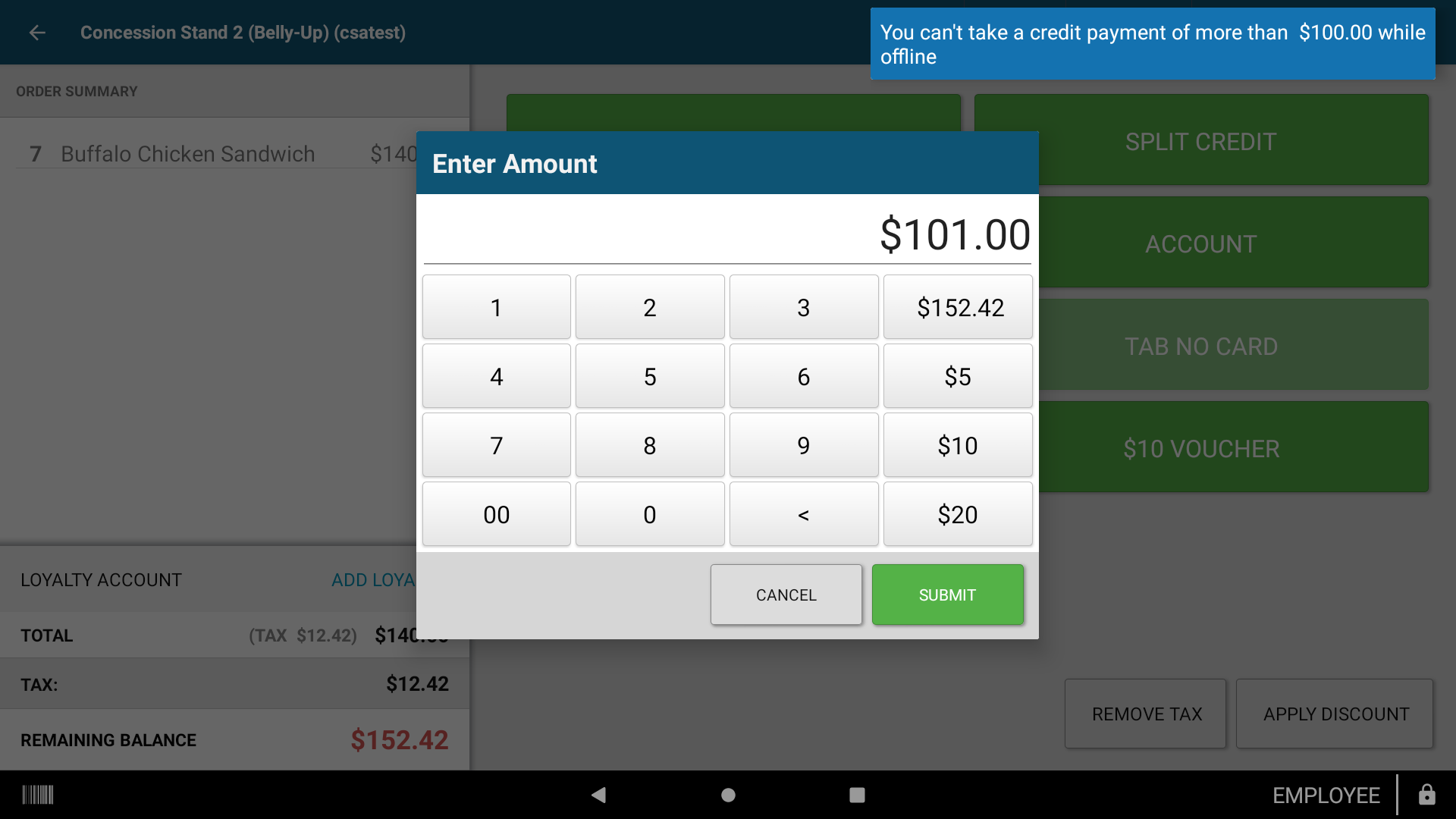
Below is an example of the notification the order taker receives when an order is above the offline credit card amount limit of $100 when paying with Credit:
Below is an example of the notification the order taker receives when an order is above the offline credit card amount limit of $100 when paying with Split Credit:
What risks are involved with using Offline Mode?
The main purpose of Offline Mode is to keep lines moving by allowing orders to be completed while delaying payment processing until the network is restored. However, this means that if a payment fails during an order, the cashier won’t be aware until after the network is back online.
Key issues when using Offline Mode:
- Orders paid with credit cards must be below the Offline Credit Card Amount Limit of the Location.
- The Reload button is unavailable. This means if you make a menu change or location change during the event, changes will not be reflected until devices return to an online state.
- The Log Out button is unavailable.
- Tab No Card and Tab are not available as payment options.
- Stored Value/Gift Cards cannot be accepted.
- No order fulfillment to external Kitchen Display Systems (KDS), kitchen chit printers, or expeditors is possible.
- The Single Identity feature will not work while offline (features like Loyalty programs will be unavailable).
- Orders and payments must be synced once network access is restored to process the payments.
- No refunds for offline payments: offline payments can’t be canceled or refunded while they're still processing. You can issue a refund once your internet connection has been restored.
- Cannot transfer order taker: you will not be able to transfer orders to a different order taker in offline mode.
- Kiosk is not available in offline mode.
Inventory specific risks:
- If you wait to sync offline orders until after you finalize your standsheet, your POS sales column will not update, which can cause unexplained variance on the standsheet between actual end counts and POS sales quantities. It is important to sync all offline orders before finalizing your standsheet to avoid data errors.
- Your Inventory Status page won't reduce stock quantities until orders have synced. If you sync orders several days later, expect a delay in the Inventory Status page update.
- Note: Clover Sport is not responsible for any lost funds resulting from the use of Offline Mode.
What should I do after using Offline Mode?
When using Offline Mode, it is critical that Orders and Payments are synced as soon as possible. After network availability returns, you should:
- Connect the device to the internet
- Sync any pending offline orders
- Log out of the device
Please visit these articles on how to sync orders from the Station Duo or the Flex.
Can I log into the device if it is offline?
If the last user to log in while online was an admin and data had not been cleared, that user will be able to log in again. Otherwise, you will need to connect the device to a hotspot or working network to allow the new user to sign in. Once the user is signed in and you confirm that menu items have correctly loaded, you can continue using the device in Offline Mode.