Cost Queues allow the system to track cost over a period of time and appropriately allocate cost when it changes.
How to View Your Cost Queues
1. Navigate to Inventory > Stock Items.
2. Click Edit next to the Stock Item of which you'd like to view the Cost Queues.
The Cost Queue always displays costs based on the Display Unit of Measure that you select. In the example below, costs are displayed based on the cost of each Coca-Cola bottle.
How Cost is Calculated When Tracking Cost Queue
When viewing cost under Ingredients > Recipes, we use a First In First Out (FIFO) method to calculate the cost of Goods out of Stock (GOS). Whichever cost is currently tagged as "Current" under the Cost Queues is the cost that will be used to calculate the Recipe cost.
Within Sales Reports, the Total Item Cost will use a First in, First Out (FIFO) model for calculating cost. The Total Item Cost field attributes the cost of the first (or oldest) price that is available. The diagram below shows how the system works, with time moving from left to right:
Example of the FIFO costing method over time
In the diagram, imagine that each rectangle is a bucket full of items. Each bucket is its own cost queue line. Each time you sell an item, we take one out of the bucket. Once a bucket is empty, we move to the next bucket. We create a new cost queue (or bucket) for every Purchase Order that is entered into the system.
If you "undo" that Purchase Order, we remove the cost queue (bucket) that was attributed to that.
Here is another example:
If you purchase 100 soda cans at $0.50 each and 20 soda cans at $0.60 each, and you sell 110 of those cans, the Total Item Cost for the soda can would be calculated as follows:
100 x $0.50 = $50
10 x $0.60= $6
$50 + $6 = $56 total cost of selling 110 soda cans
Please see the article, How to Use Recipes, for more information on how cost is reported in different areas of the system.
If You Don't Track Cost Queue
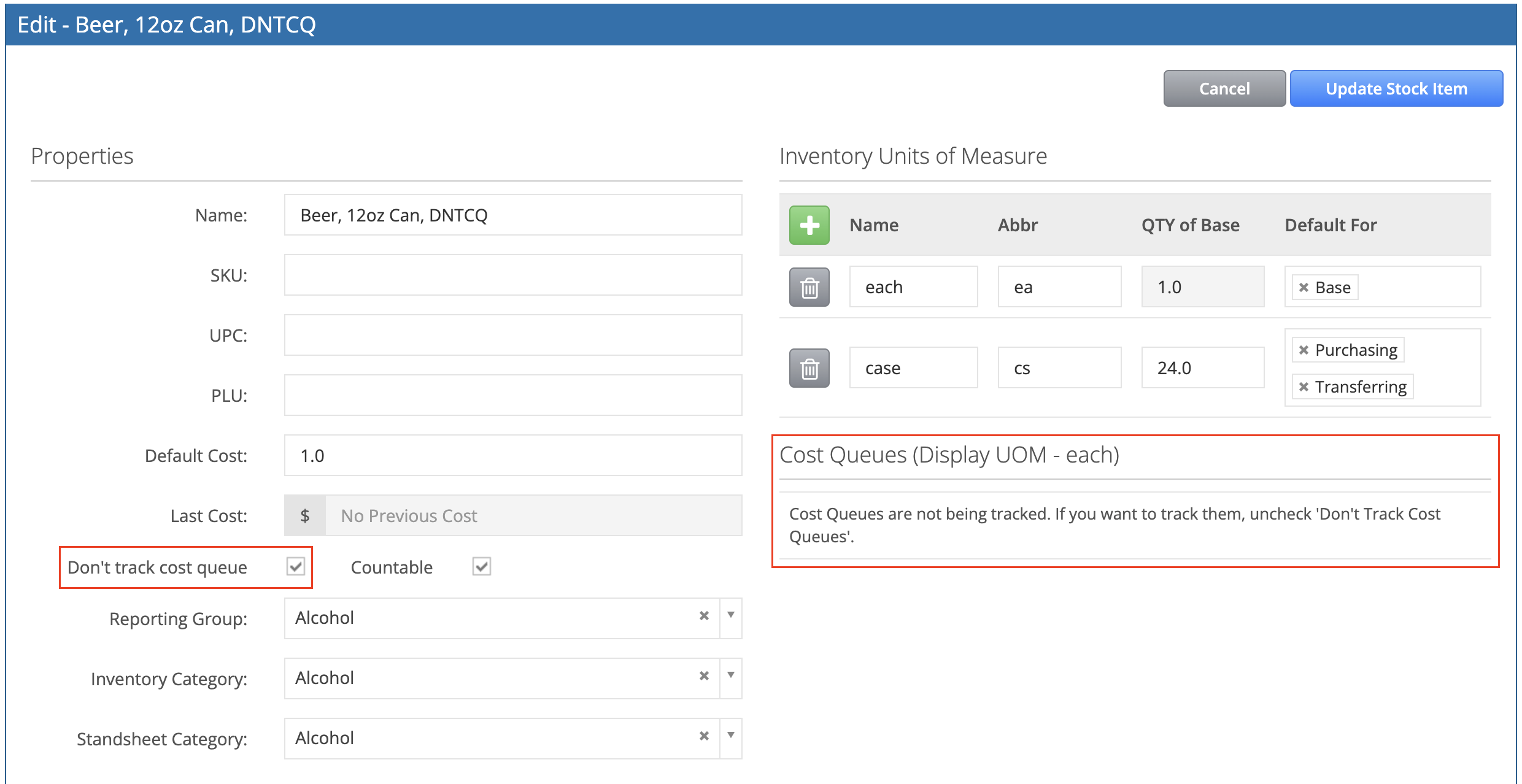
When you first create a Stock Item, and check Don't Track Cost Queue before the creation of a Purchase Order, your Recipe Cost Report, Inventory Reports , and Audit Reports will use the Default Cost, and no cost queue will be generated for that Stock Item.
Note: Checking the Don't Track Cost Queue box must be done before the creation of any Purchase Order of that item, otherwise cost will be calculated based on the Cost Queues, even if you check the box later.
This means that the Stock Item will not have a purchase history displayed and you will be able to update the Default Cost whenever you want to update the cost used in your reports.
Checking Don't Track Cost Queue also means the Recipe Cost under Ingredients > Stock Items will use the Default Cost.
Checking Don't Track Cost Queue temporarily enables you to make a return of that Stock Item. This is most often used for a Keg Deposit. It allows you to put a negative value on a Purchase Order. After the return, you would uncheck the box again.
Negative Cost Queues
When operating normally, your cost queues shouldn't ever go negative. However, real life moves quickly and sometimes the warehouse managers need to work out of their typical order, so we do allow for cost queues to go into the negative. That means that they may wait until the end of the week to enter all their purchase orders into the system, after they have sold the inventory. If that is the case, the system will start attributing portions of the negative value to each of the newly created cost queues.
Example:
If I have -1000 units in my cost queue and I enter a purchase order for 500 units. The system will create a new cost queue for 500 units and immediately exhaust the entire queue. That will leave my original queue with -500 units. If I receive another PO with 1000 units, then the system will exhaust that queue to 500 and leave the original cost queue at 0.
In order to have an accurate cost calculation, there should never be negative cost queues. For more information, see Inventory Audits.