Clover Sport allows you to hold a Card on File with a Customer with the purchase of the Premium (Suites) module. When the Card on File is added to a pre-order, it is preauthorized and then can be used to close the pre-order which converts to an open tab at the start of the event. The tab can be added to throughout the event and then closed to the Card on File at the end of the event.
There are several configuration steps to do before you can use a Card on File to close out orders in Suites. Use this guide to understand the workflows available to you.
Note: These workflows assume that you have created your Commissary Location and Menu, Service Locations (Suites), Suite Accounts, Suite Customers, Suite Event, and Suite Bookings.
- How to Add a Card on File to the Customer
- Assign the Customer with COF as the Primary Contact or Host of the Booking
- Assign the COF to the Pre-order
- Closeout Options When the Card on File is Assigned
- Closeout Options When the Card on File is Not Assigned
How to Add Card on File to the Customer
The Card on File must be added to the Customer before it can be added to a Pre-Order on a Booking.
To add the card on file,
- Navigate to Premium > Accounts. Then click the Customers tab.
- Select the Customer you would like to edit.
- Click Add Card.
- Type Customer Name (as on the card).
- Type Card Number.
- Enter expiration date.
- Enter the Security Code.
- Note: The Security Code is the three or four-digit number on the back of the card.
- Click to add customer as authorized signer of that card.
- Click Save (upper right).
Assign the Customer with COF as the Primary Contact or Host of the Booking
When creating a Booking for an Event, be sure to assign the Primary Contact or Host field as the person whose Card on File will be preauthorized and used to close the tab on Event Day. If the Suite Account is a Suite Owner, it will auto-populate in both the Primary Contact and Host field, but you may input someone else if the Suite Owner's card will not be used.
If you do not select the Primary Contact or Host, there will be no Card on File dropdown menu when inputting the preorder.
If using the Online Customer Ordering Portal (OCPO), the guest must have a Card on File in order to place their order. After their order is placed, then you must go in an assign the Card on File to the pre-order (see next section)
Assign the COF to the Pre-order
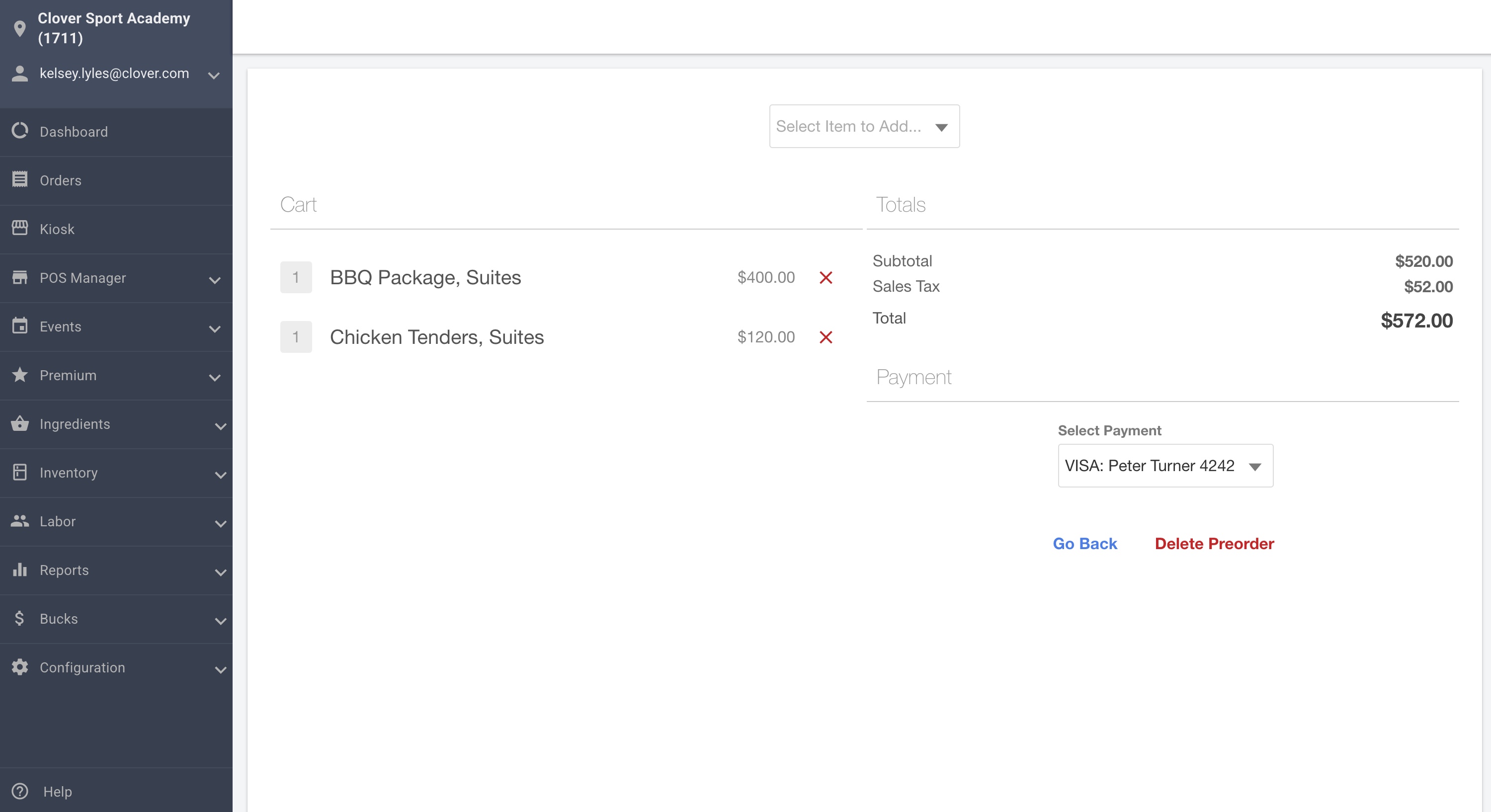
Assigning the Card on File when you in put the preorder enables that preorder to convert to a Tab with Card under the Cardholder's name.
To assign the Card on File to the Preorder,
1. Navigate to Premium > Bookings.
2. Select the Booking ID of the Booking you would like to edit.
3. If no preorder has been added yet, scroll down to the Pre-order section and click Create Pre-order. Select Items to add to the order before moving to step 4.
If a preorder has been added either on Manager or via OCPO, click Edit Pre-order.
4. Under Select Payment, click the appropriate credit card.
5. Click Go Back. This saves the Card on File to the pre-order.
Card on File Preauthorization
The pre-authorization amount on a customer's credit card is $1.00. The credit card used for pre-orders created in Manager will be the one selected in the "CREATE PRE-ORDER" page. For orders placed on the Online Customer Portal (OCPO), the card used will be the one the customer selected when placing the order. Make sure once the pre-order is submitted, to go into the booking and click the card from the payment method dropdown menu.
Closeout Options when Card on File is Assigned
A pre-order that has a card assigned to it will convert to a Tab with Card named after the Cardholder.
When it reaches the end of the event and it is time to close the Tab with Card, you may choose to do 1 of the following:
Flex:
- Tap the home button (circle on the bottom of the navigation bar) to navigate to the Orders.
- Tap Tabs.
- Tap the Open Tab of the appropriate Cardholder.
- Click Close tab.
- On the next screen, click Close tab again. Clicking Close Tab closes the order to the Card on File originally added to the pre-order.
Station Duo:
- Tap Orders.
- Tap Open Tabs.
- Tap the Open Tab of the appropriate Cardholder.
- Click Checkout.
- Click Close Tab. Clicking Close Tab closes the order to the Card on File originally added to the pre-order.
Closeout Options when Card on File is NOT Assigned
A pre-order that does not have a card assigned will convert to a Tab NO Card and no card will be preauthorized.
Because it is a Tab NO Card, you must use a different closeout workflow from a Tab With Card. Choose 1 of the following:
Flex:
- Tap the home button (circle on the bottom of the navigation bar) to navigate to the Orders.
- Tap Tabs.
- Tap the Open Tab of the appropriate Cardholder.
- Click Close tab.
- Click Card on File.
- Select the desired Card on File.
- Note: All Cards on File of Customers associated with the Suite Account tied to the Booking are available to use.
Station Duo:
- Tap Orders.
- Tap Open Tabs.
- Tap the Open Tab of the appropriate Cardholder.
- Click Checkout.
- Click Card on File.
- Select the desired Card on File.
- Note: All Cards on File of Customers associated with the Suite Account tied to the Booking are available to use.