Clover Sport's Suite Bookings work in conjunction with the customer facing pre-order portal (OCPO). By typing important notes into the Notes section under the Booking, you are able to tailor the event day service to the customer's needs. Additionally, customers can add additional notes to their order on the OCPO website before submitting their order. These notes get saved in the Booking and printed on the Setup Guide for pre-event preparations.
Read on for a step-by-step guide of this process.
- Add Notes to Suite Booking
- Use OCPO to Add Additional Notes
- Download Setup Guide
- Example Setup Guide
Add Notes to Suite Booking
Once you have created a Booking for your Event, you can add Booking Notes:
- Navigate to Premium > Bookings.
- Click the Booking ID.
- Type your notes in the Notes field.
- Click Save. Note: There is a 250 character limit for the Notes field.
Use OCPO to Add Additional Notes
Customers can then sign into the OCPO portal unique to your venue and build their order.
When the customer has finished building their order, they click on the cart to check out. Under Special Instructions, they may add additional notes below the Booking Notes that have already been saved in Manager.
Existing notes that have been entered into Clover Sport Manager populate in the notes field as shown below. The customer may click below the existing notes to type in additional notes for their Booking.
The customer must click Save Instructions so that the notes will save in the Booking in Clover Sport Manager.
In this example, "Further notes will be saved in the booking in Manager" appears in Manager after the customer saved the instructions on the OCPO website.
-
Note: Only Order Level Special Instructions save to the Booking on Manager and on the Booking Notes section on the Setup Guide. Item Level Special Instructions appear on the Pre-order Notes section of the Setup Guide. See the section of this article titled: Example Setup Guides.
Download Setup Guide
You may download the Setup Guide which contains the information needed to get the suite ready on Event day.
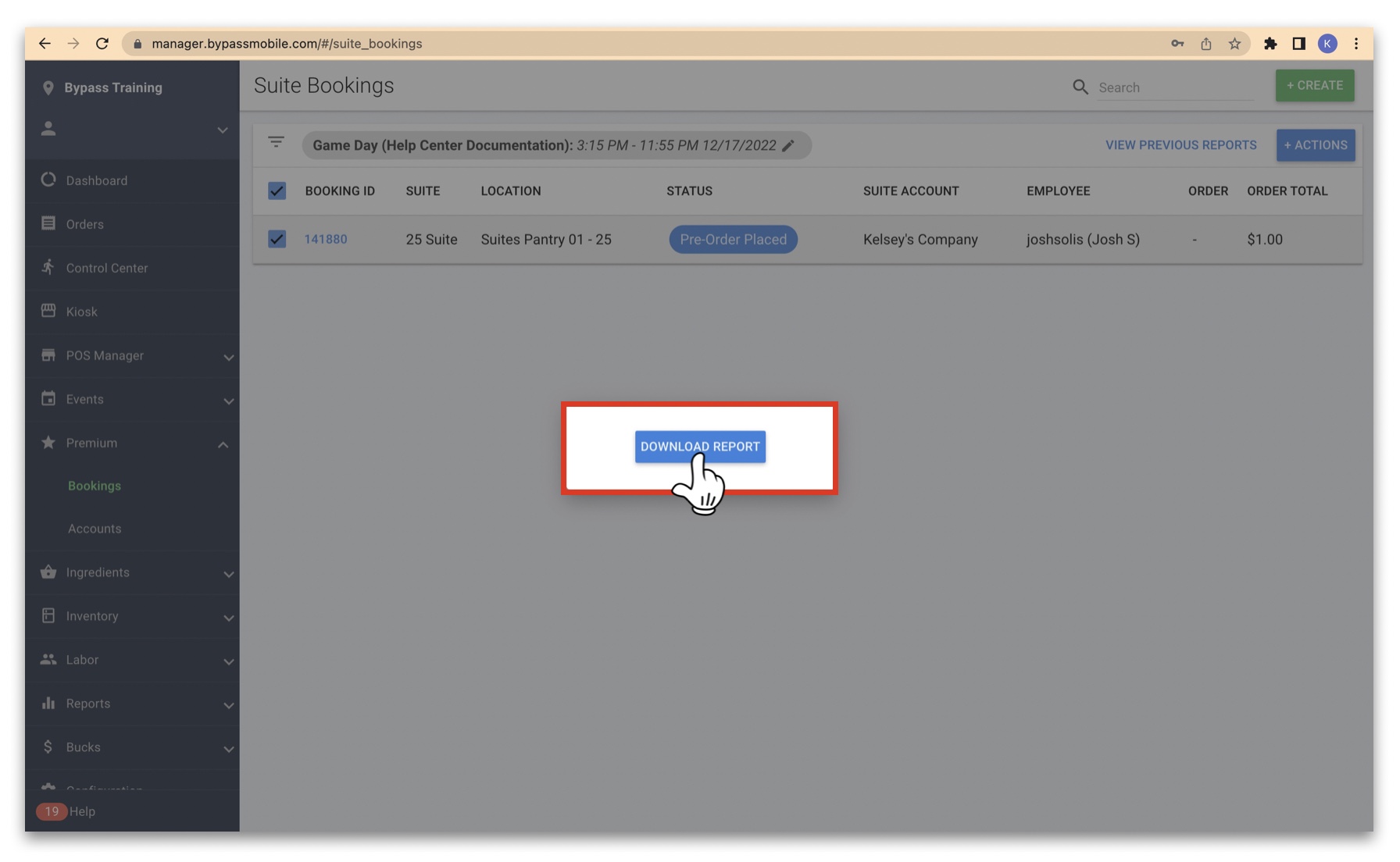
1. Under Premium > Bookings, select the correct Event in the gray bar.
2. Click on the checkbox next to the Booking ID of the desired Booking.
3. Click Actions (upper right).
4. Click Setup Guide.
5. Click Download Report.
 Example Setup Guides
The Setup Guide contains both the notes that you typed into Manager and the notes that the customer saved in the OCPO website in the section called Booking Notes as seen below:
If your customer inputted Item Level Special instructions when placing their preorder, those notes will appear in the Pre-order Notes section as seen below:
For more information about Pre-Event Preparation Guides, click here.